Older operating systems like Microsoft Windows 95, 98 and ME can run legacy DOS-based applications and games directly from the operating system. However, audio functionality may be lacking as the software has different expectations of how to access audio card.
For owners of Creative Labs Audigy sound cards, early editions of these cards which shipped with the original 'gold' release of software disc contain a device driver that will enable emulation of Sound Blaster 16 mode, so a user may play their old games, which expect a SB16 audio card. This software was carried over from the Sound Blaster Live software suite.
The device driver that enables this functionality has been targeted towards Windows 98 only and will not install with Windows Millenium Edition (Windows ME) automatically.
The following instructions will describe how to install this emulation mode on Windows ME and was successfully tested the Duke Nukem 3D 1.3, Blood, Descent 2, Raptor and Spear of Destiny games.
Requirements
- Operating system: Windows ME
- One(1) extra free IRQ address. On a modern system this will be handled automatically
- 20MB Free HDD space
- Audigy Driver and application CD
- The particular DOS based game that is desired to be run
- Latest Audigy device driver if desired
Procedure
- Copy \dosdrv\ from the CD to the Hard disk. This folder contains the necessary device driver that will enable the emulation functionally.
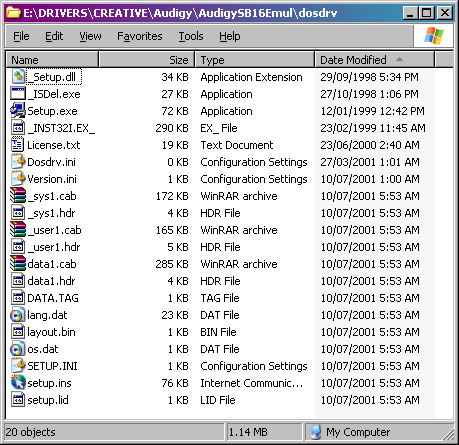
- Locate and delete checkos.exe in the folder that was copied over in the above step.
- Navigate to the \dosdrv\ directory created earlier and run the setup executable.
- Once this is complete, reboot the computer. Once the reboot is complete the system will detect a ‘SB16 Emulation device’.
- Setup the game that you intend to use for sound and run.